
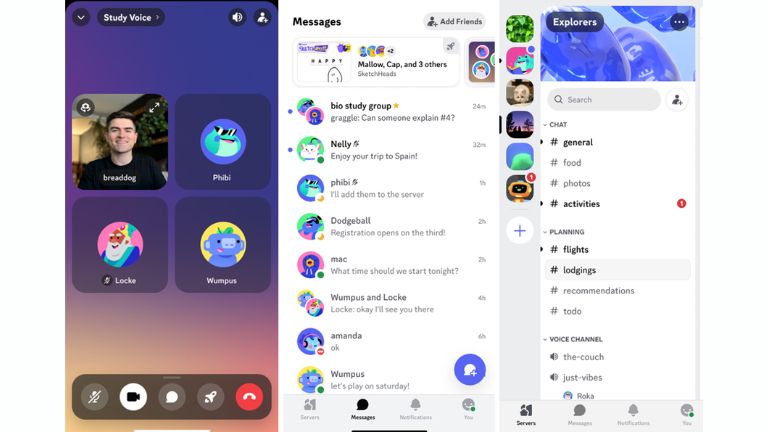
The Discord App is one of the most popular communication tools out there, especially for gamers and online communities. Whether you’re jumping into voice chats with friends during a late-night gaming session or managing a large group for hobbies, work, or study, the Discord app makes it all seamless and fun.
If you’re new to it or just exploring alternatives to other platforms, you’ll love how versatile the Discord app is. It’s free, packed with features, and works across devices. In this guide, we’ll cover everything from basics to advanced tips to help you get the most out of it.
What Is Discord and How It Works
The Discord app is a free voice, video, and text chat platform originally built for gamers but now used by millions for all kinds of communities. Think of it as a mix of Slack, TeamSpeak, and IRC, but way more modern and user-friendly.
You can access Discord in a few ways:
- The Discord app (downloadable for Windows, macOS, Linux, iOS, Android) – this is the full-featured version with the best performance, especially for gaming.
- The Discord web or Discord web browser version (discord.com) – perfect if you don’t want to install anything or are on a shared/public computer.
- The Discord web app – basically the browser version that feels like a standalone app.
The main difference? The desktop/mobile Discord app runs smoother, supports the in-game overlay, better notifications, and hardware acceleration for voice/video. The Discord web browser version is lighter and great for quick access, but it might lack some advanced features like full overlay support or consume more battery on mobile. Both sync your account, so your servers, messages, and friends stay the same wherever you log in.
Discord Account Basics
Getting started is super easy.
For Discord sign up, head to discord.com or open the app, click “Register,” enter your email, username, password, and date of birth. Verify your email, and you’re in. No phone number required unless you want extra security.
Discord log in works with email/password, or you can link Google, Apple, Steam, Twitch, etc., for quicker access. If you’re using Discord online without the app, just go to the Discord website in your browser and log in – no downloads needed.
Pro tip: Enable two-factor authentication right away in settings for better security.
Discord Servers Section
Discord servers are like customizable group chats or communities. Each server has text channels (for chatting, sharing memes, announcements), voice channels (for calls, gaming), and roles for organization.
To find servers, use the in-app “Discover” tab or search online for public ones. Sites and lists often share Discord servers list with categories like gaming, music, study groups, or memes. Look for active ones with good moderation.
Tips for joining safe and active servers:
- Check member count and recent activity.
- Read the rules channel first.
- Avoid servers promising “free nitro” or shady links – stick to verified or well-reviewed ones.
- Start small: Join a few related to your interests, like gaming clans or hobby groups.
How to Link Discord to Battlefield 6, Marvel Rivals & More
Many modern games integrate with Discord for richer features like inviting friends directly, seeing who’s online, or showing your in-game status.
For Battlefield 6 (the latest in the series), link your EA account to Discord. In-game, open the friends menu, select “Connect to Discord,” scan the QR code or follow the link, authorize it, and confirm. This lets you invite Discord friends to parties without leaving the game and shows detailed rich presence (like what mode you’re in).
In Marvel Rivals, it’s even smoother. On PC, open the friends list (top-right), go to the Discord tab, hit “Link Now” or “Go,” sign in, and authorize. This unlocks in-game invites, friend visibility, and sometimes bonus rewards like extra units.
Other games (like many multiplayer titles) use similar rich presence – your friends see you’re playing and can join easily. Check the game’s settings or Discord connections page for more.
How to Share What You’re Playing, Listening to, or Watching as Your Status on Discord
Discord makes it easy to show off what you’re up to. Go to User Settings > Activity Settings > enable “Display current activity as a status message.” If you’re playing a supported game, it auto-detects and shows rich presence (game name, details).
For Spotify, link your account in Connections – your friends see what song you’re jamming to. Same for YouTube or other apps. You can also set a custom status like “Grinding ranks in Marvel Rivals” with an emoji. It’s a fun way to spark conversations – “Hey, you’re watching that too? Let’s discuss!”
Starting Your First Discord Server
Creating your own server is straightforward. In the app, click the “+” icon on the left sidebar, choose “Create My Own,” pick a template (gaming, friends, club, etc.), name it, upload an icon, and done.
Invite friends via shareable links (set expiration or usage limits for privacy). Start adding channels: #general-chat, #memes, voice channels like “Lobby” or “AFK.”
How to Set Up Your Server’s Roles for Members, Mods & Admins
Roles control permissions and look cool with colors. Go to Server Settings > Roles > create new ones like @Admin, @Moderator, @Member.
Assign permissions: Admins get everything, mods can manage messages/kick users, members basic access. Drag roles to set hierarchy (higher = more power).
Use role colors for visual flair – green for mods, red for admins. Mention @roles to ping groups.
How to Use the Discord Soundboard & Add More Sounds
The soundboard is hilarious in voice chats. In a server voice channel, click the soundboard icon (looks like a speaker) to play built-in sounds like airhorns or memes.
Server owners/admins add custom sounds: Server Settings > Soundboard > upload short clips (under limits). Adjust volume in User Settings > Voice & Video > Soundboard. Great for reacting without typing – drop a “bruh” sound at the perfect moment.
How to Customize Your Discord Profile
Make it yours! Click your avatar > Edit Profile. Add a bio, pronouns, banner (Nitro for animated/custom), avatar (upload or use AI-generated), and about me section.
Link accounts (Twitch, Spotify, etc.) for connected profiles. Set a custom status with emojis. Nitro users get fancier options, but basics are free.
How to Use Discord’s In-Game Overlay to Talk While Playing on PC
The overlay is a gamer’s best friend. Enable in User Settings > Game Overlay. Set hotkeys (default Shift + ` for toggle).
While gaming (supported titles), press the hotkey to open – chat, voice controls, friends list, without alt-tabbing. Pin widgets, share screen, or watch streams in PiP. Recent updates made it more customizable with better widgets.
How to Create & Upload Your Own Stickers on Discord
Stickers are fun animated/static images. In a server with permission, go to a text channel, click the sticker icon, or Server Settings > Stickers > upload (PNG/APNG, under size limits).
Create your own: Use tools like Photoshop or free apps, export as APNG for animation. Add descriptions for search. Nitro boosts unlock more slots.
How to Stream Games and Applications to Discord from Desktop or Mobile
Streaming is easy. In a voice channel, click “Screen” or “Go Live.” Choose window/application/game, set quality (up to 1080p/60fps with Nitro).
On mobile, share screen in voice chats. Great for co-op gaming, showing friends a funny clip, or teaching. Viewers can react with emojis.
Compared to platforms like Telegram (great for channels and large groups), Telegram X (faster experimental version), Snapchat (ephemeral fun chats), or IMO (simple video calls), the Discord app shines for real-time voice, communities, and gaming integration.
FAQ
Is Discord free to use?
Yes, completely free! Core features like chats, servers, voice/video are unlimited. Optional Nitro adds perks like better streaming and custom emojis.
Can I use Discord without downloading the app?
Absolutely. Use the Discord web or Discord web browser version at discord.com – log in and access everything online.
Is Discord safe for beginners?
Mostly yes – enable privacy settings, don’t click suspicious links, and join moderated servers. Report bad actors easily.
What is the difference between Discord web and Discord app?
The Discord app offers better performance, overlay, and notifications. The Discord web is convenient for no-install use but lighter on features.
How do I find good Discord servers?
Use the Discover tab, search online Discord servers list, or ask friends. Focus on active, rule-following ones.
Do I need Nitro for most features?
No – basics are free. Nitro enhances with extras like HD streaming and more uploads.
Can Discord replace other apps?
For gaming and communities, yes. For quick snaps, try Snapchat; for international calls, IMO works well.
Conclusion
The Discord app stands out for its blend of easy communication, powerful community tools, and deep gaming integration. From casual hangouts to organized events, it keeps friends connected without hassle.
Dive in, join or create servers, experiment with features like soundboards and overlays – you’ll wonder how you gamed without it. Have fun exploring, and drop into a server today! Your next adventure (or squad) is just a click away.




Alright crew, who’s feeling lucky? Check out luckypkr, might be your lucky day. Get lucky at luckypkr.